This collection of free online food games will help children and families to learn
about food safety and kitchen hygiene. The food games on this page cover subjects such as kitchen hygiene, how to
store food and how to make sure food is cooked properly.
Follow the links in the table below to the food games for kids.
You will find detailed advice on how to prepare food safely here. There's also a great quiz on barbecue safety here.
To start the game, click the Food Standards Agency Wales button (only click Cymru if you want a
Welsh language version). You have to drag the food the correct shelf in the fridge, so that germs
don't drip on other foods. (eatwell.gov.uk)
In this game you can learn how to cook safely on a barbecue. Click on the Wales button if you
want to play the game in English (use the Cymru button to play in the Welsh language.
(eatwell.gov.uk)
There are several difficulty levels to choose from in this food safety quiz. Click on a hexagon,
then answer the question - try to move from one side of the board to another to complete the
game.(food.gov.uk)
In this game, you have to answer the food safety questions as you drive through the park. The
questions involving food temperatures are quite hard if you're used to using Celsius, as they are
in Fahrenheit - but it's still a good game. (usda.gov)

 Stack the Fridge Game
 Check the Barbecue Food Game
 Foodbusters
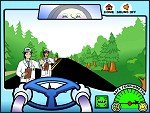 Food Safety Mobile Game